(Click here to download the PDF version of this guide)
Attorney Guide
Sending Retainer Agreements via the Attorney Dashboard
The E-Signature feature is enabled by default for all attorneys in the system although this is configurable via Attorney Test Feature as indicated below.
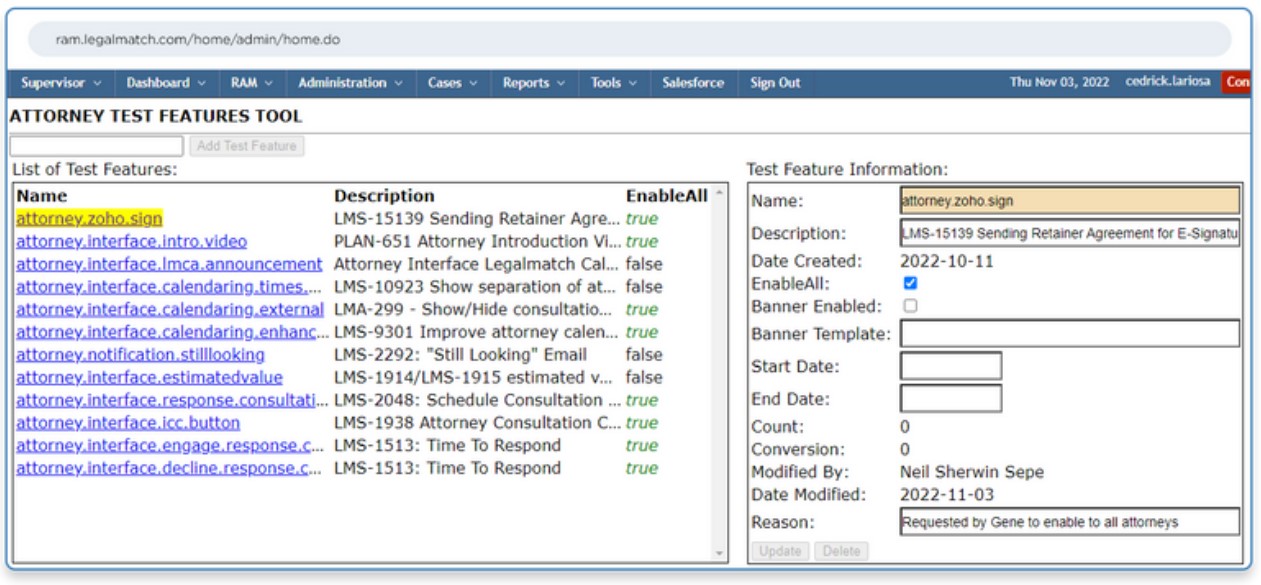
The E-Signature menu can be found in Attorney Settings.
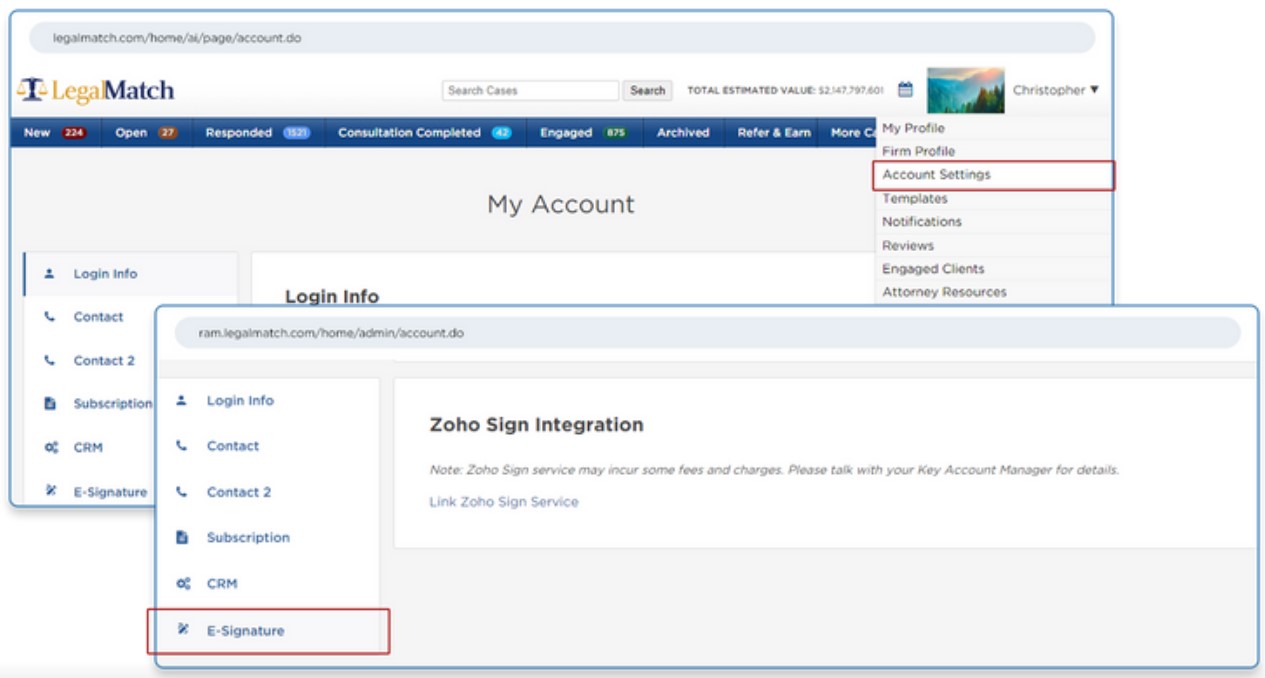
How it works
- Go to Account Settings and click E-Signature. Click the Link Zoho sign Service. Page will be navigated to https://accounts.zoho.com/signinservicename=AaaServer&serviceurl…
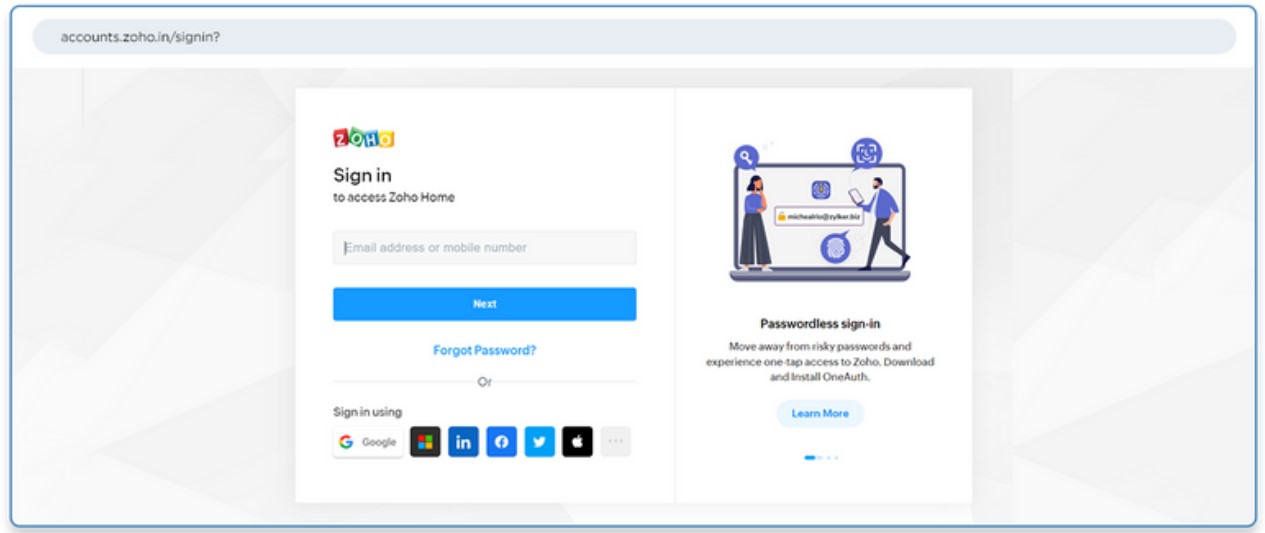
- For attorneys with existing ZohoSign account, input the username and password to login.
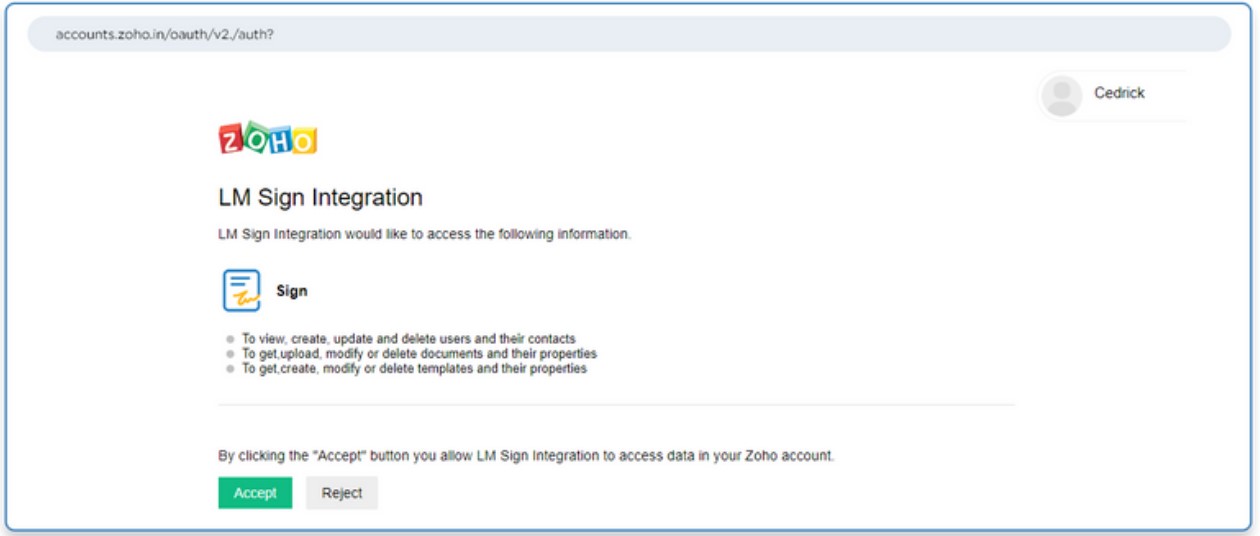
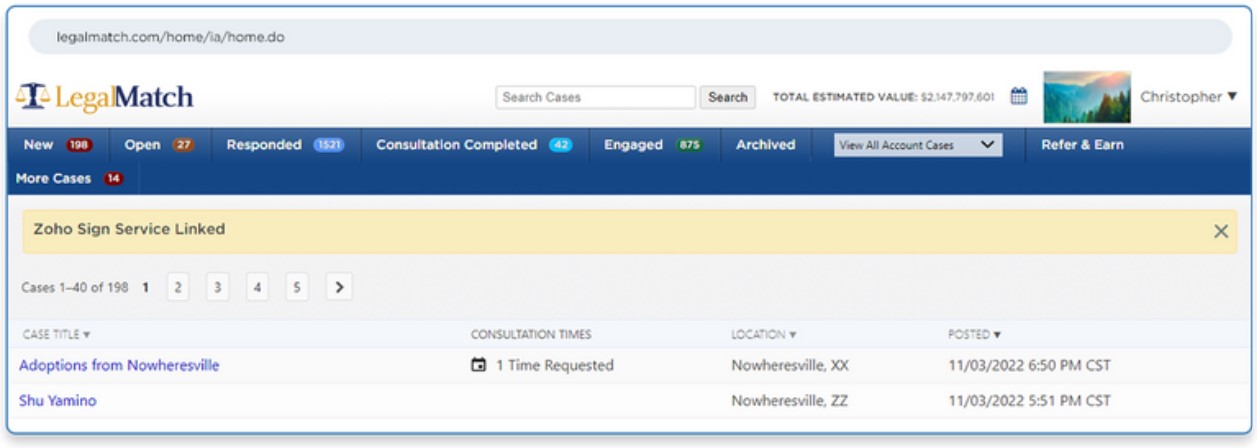
- Click Accept and attorney is navigated back to the dashboard with a banner Zoho Sign Service Linked.
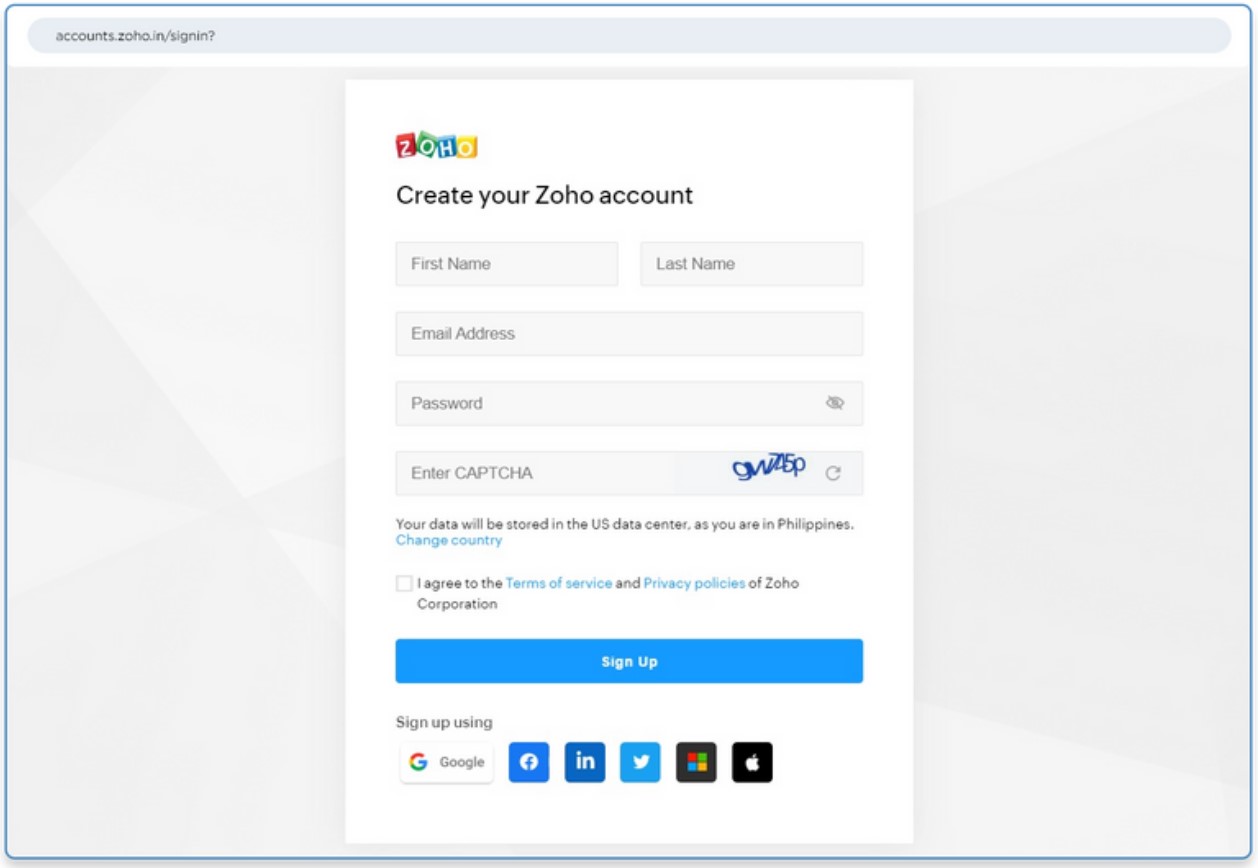
- For attorneys without existing Zoho accounts, click Sign Up Now, which will redirect to the registration page.
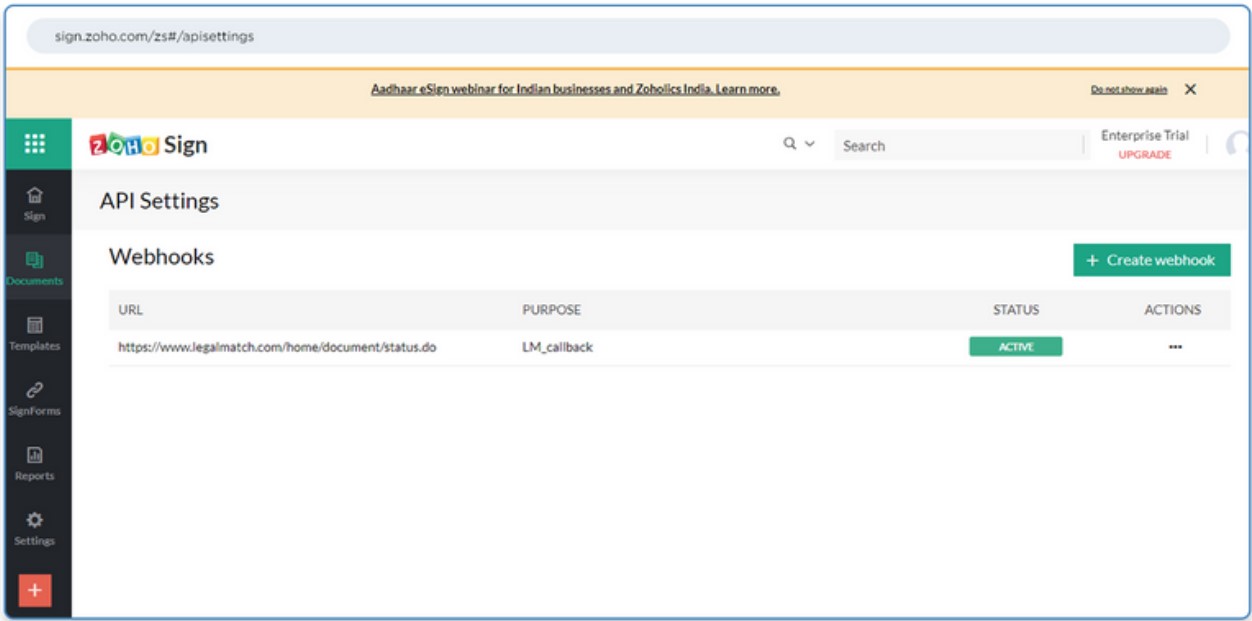
- At this point, once the Zoho Sign account is linked to the attorney, the callback is automatically generated in Zoho API Settings. Note: You may need to verify that this is created, otherwise the EP Document Status will not work as intended.
- Once setup, the attorney can now send an Engagement Proposal via the Follow Up button in the Responded, Consultation Completed and Engaged Tab accordingly.
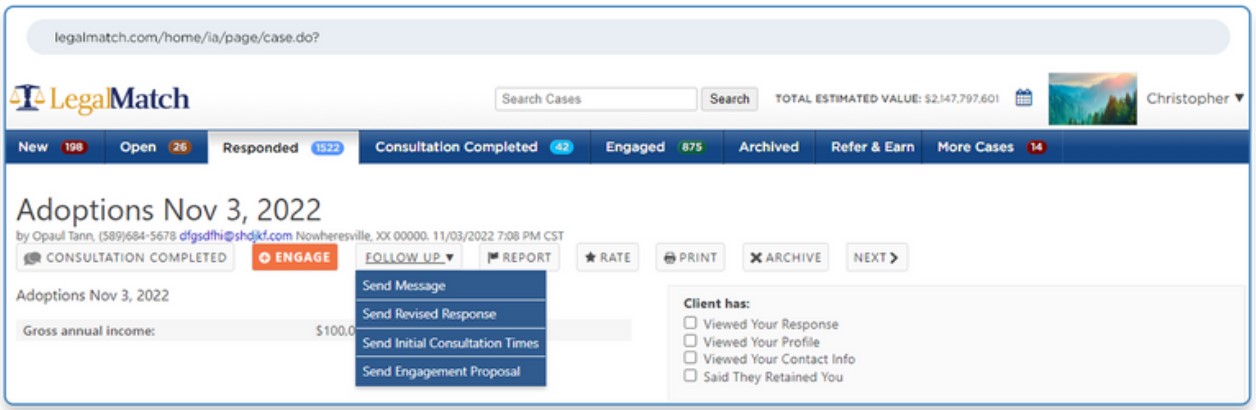
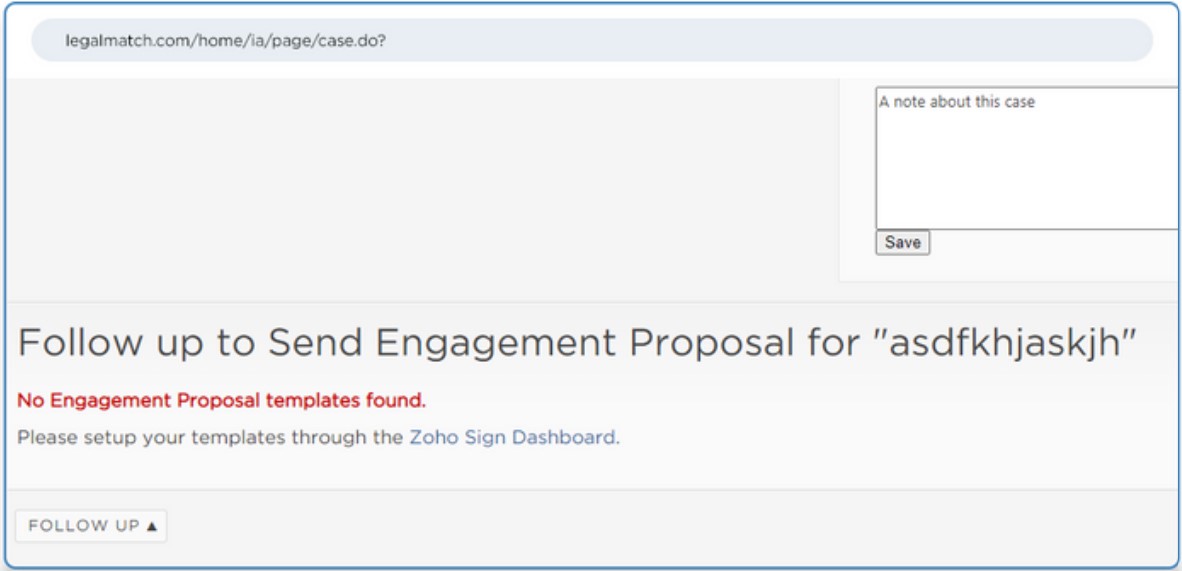
- Take a case and Send an Engagement Proposal. If templates are not set up, it should prompt the following.
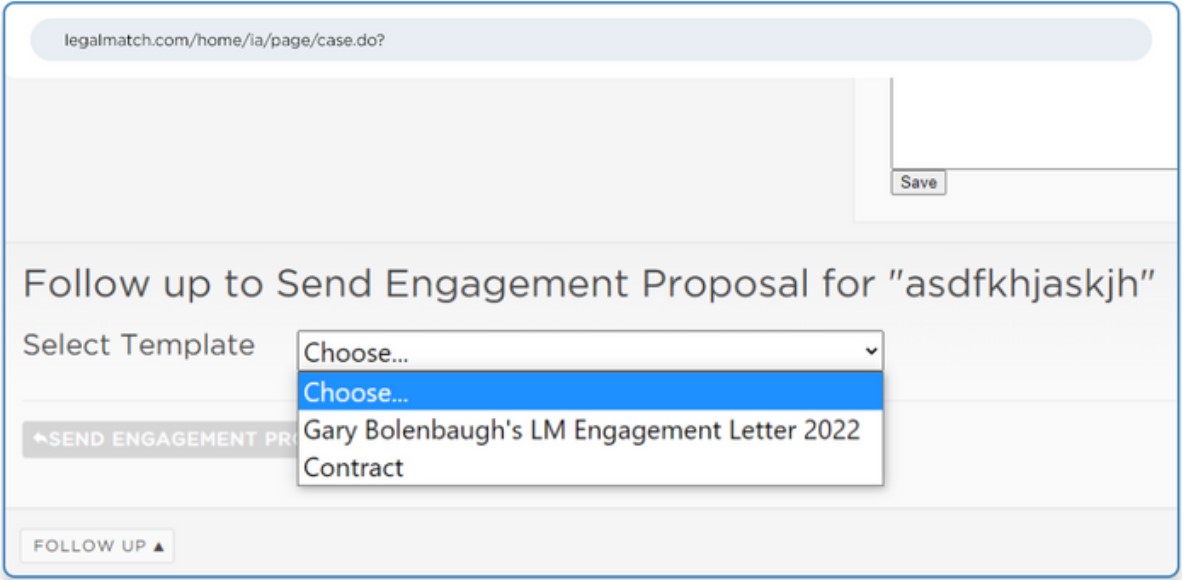
- If templates are set up, it should display the templates in the dropdown. Note: Check video recording how to setup templates in Zoho.
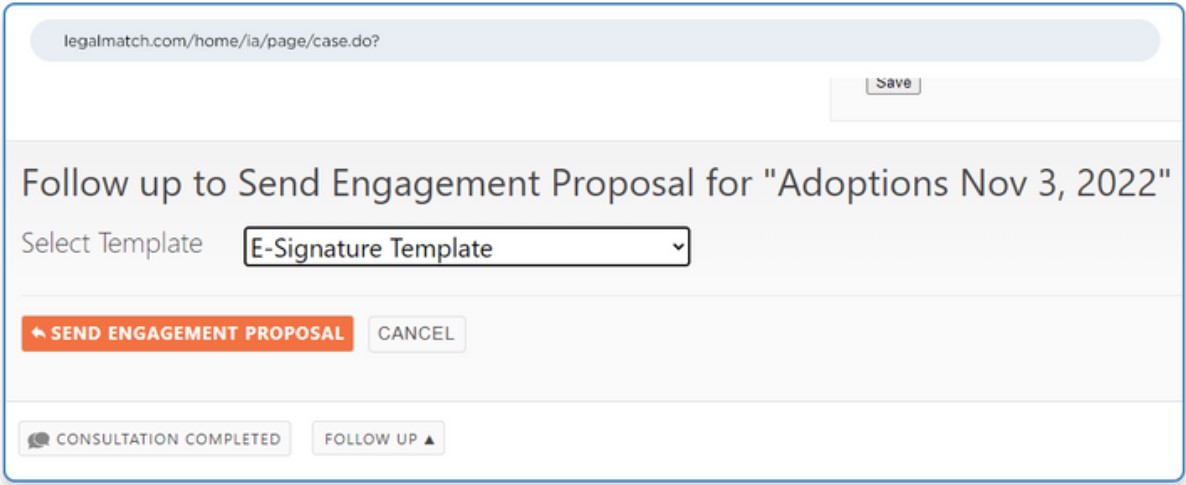
- Attorney chooses a template from the dropdown and click Send Engagement Proposal.
- From the top of the attorney dashboard, a banner should display Engagement Proposal Document Sent.
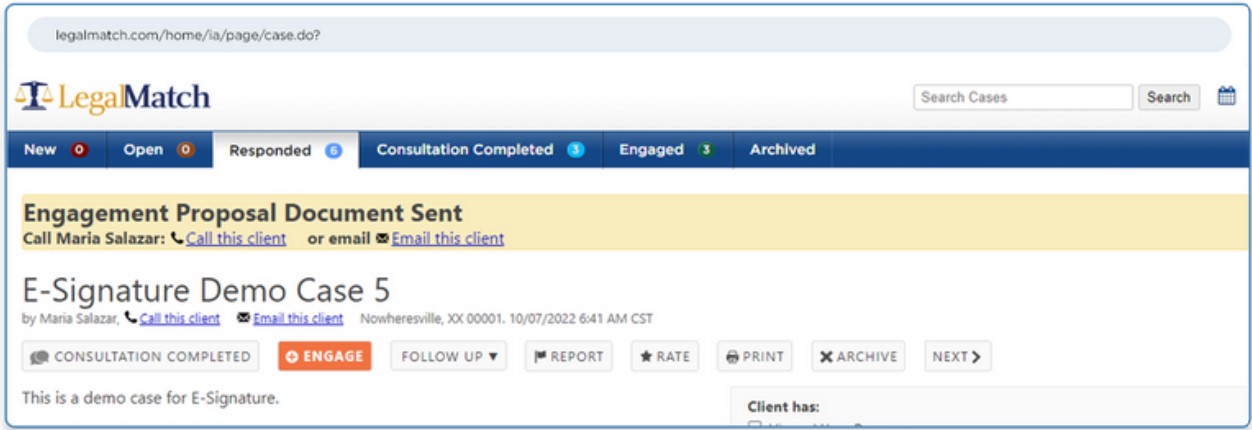
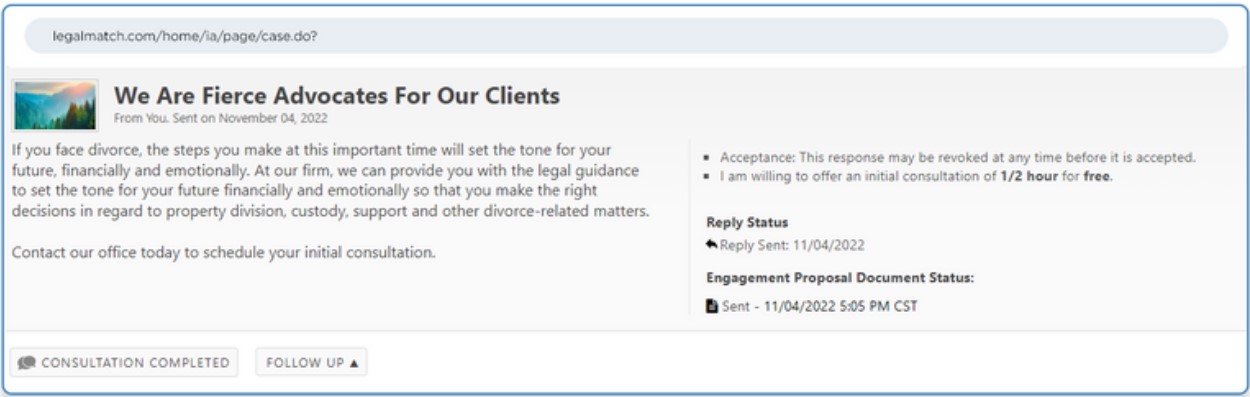
- From the case details, the attorney should be able to see the EP Document Status as Sent.
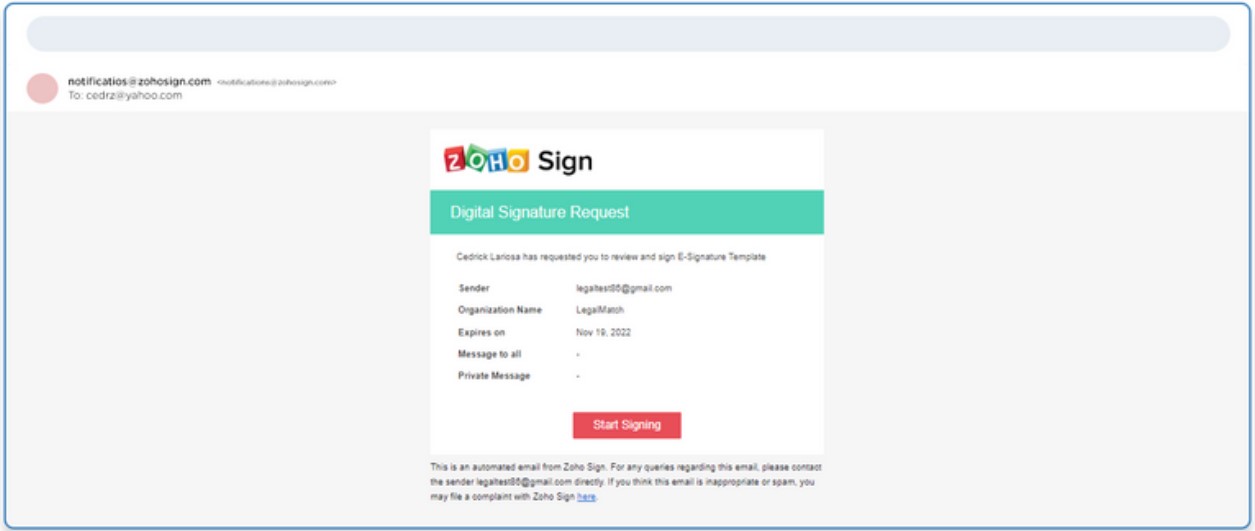
- An email is then sent by Zoho to the client indicating the attorney request to sign the Engagement Proposal document.
- Once the client clicks Start Signing, a new tab is open redirecting to the document in Zoho Sign dashboard.
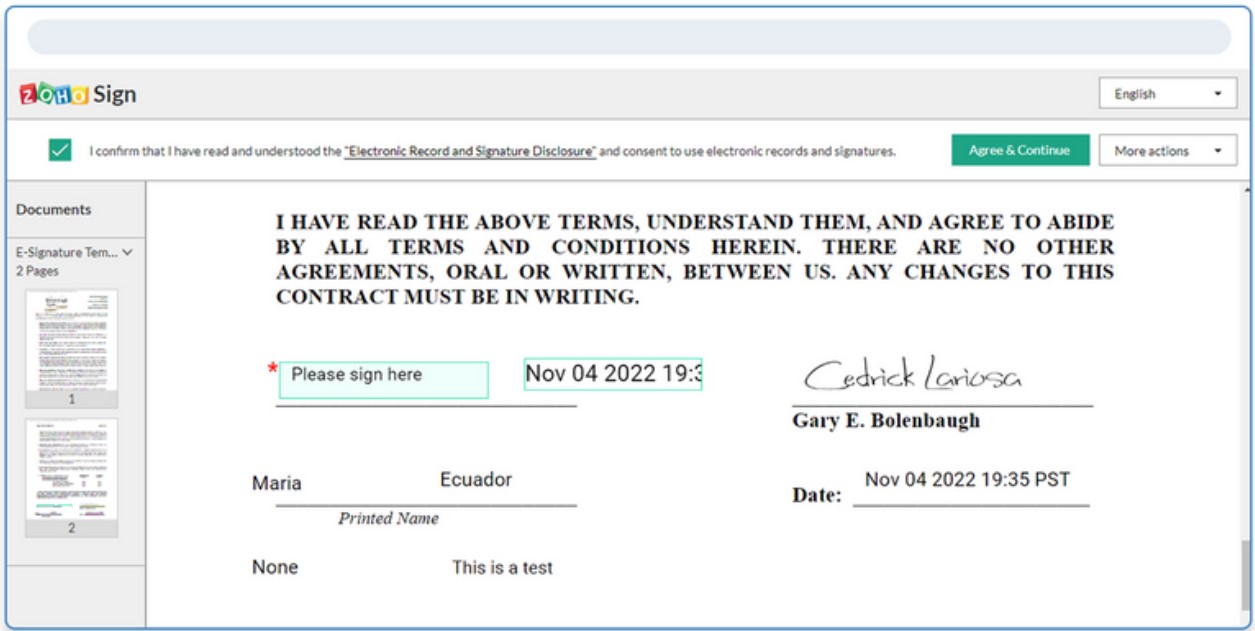
- At this point, the EP Document status should be updated from Sent to Viewed.
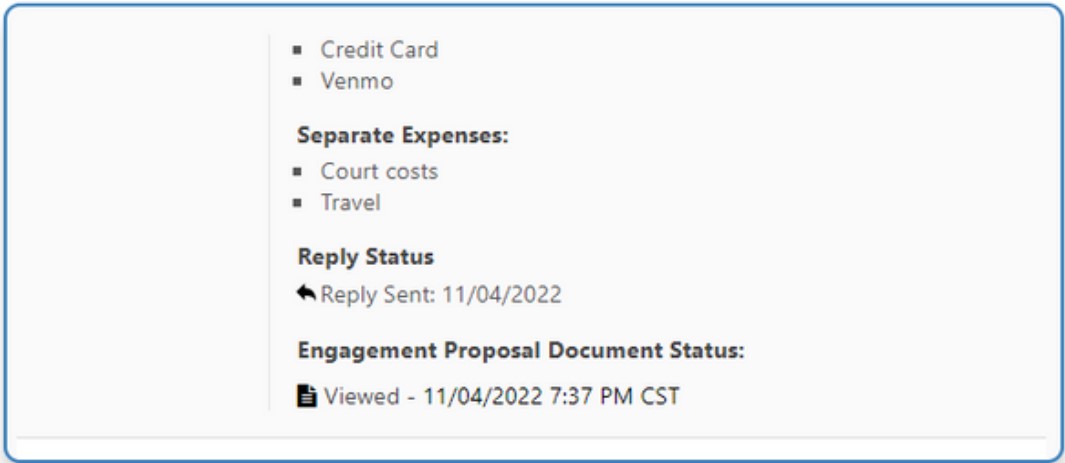
- Also, it is possible to append automatically the following information: client_firstname, client_lastname, retainer_fee, retainer_other_info. These can be set up in the templates.
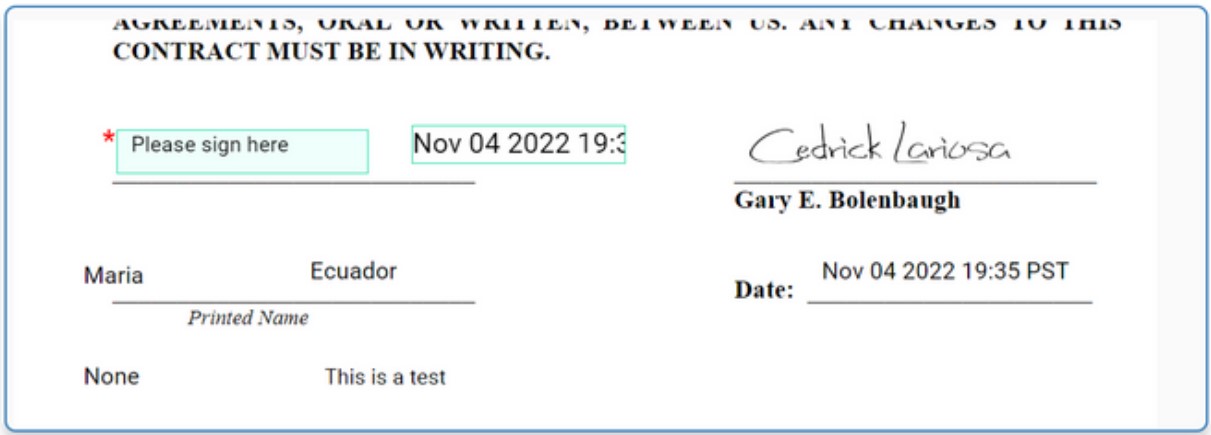
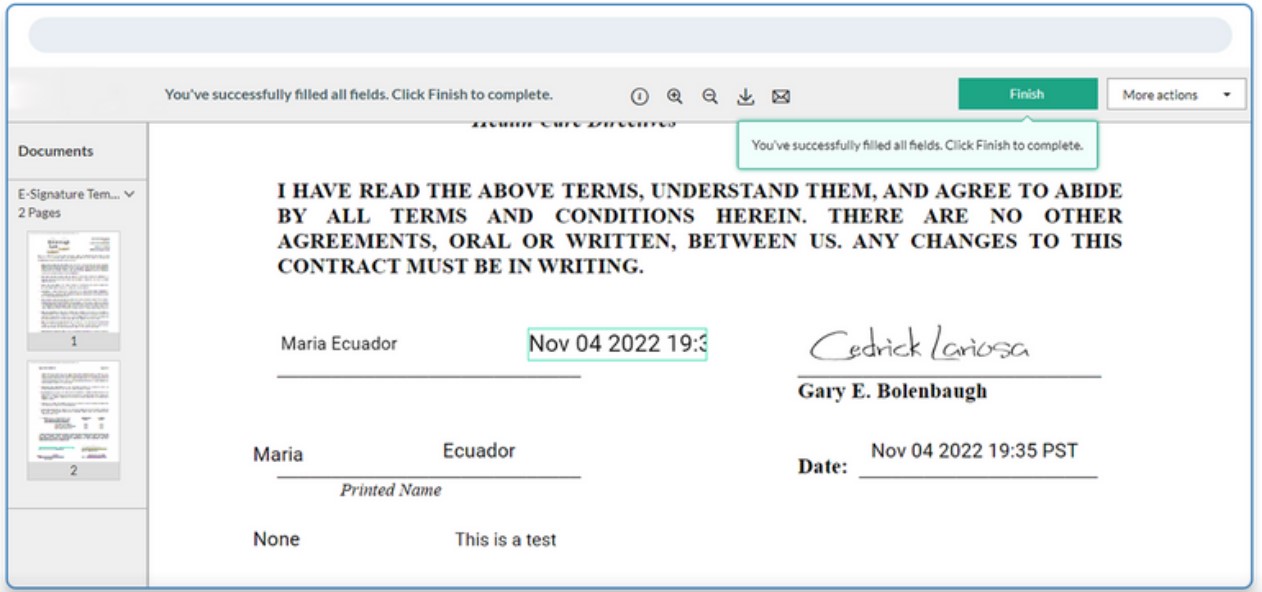
- Once the client signs the document and click Finish, the EP process is completed.
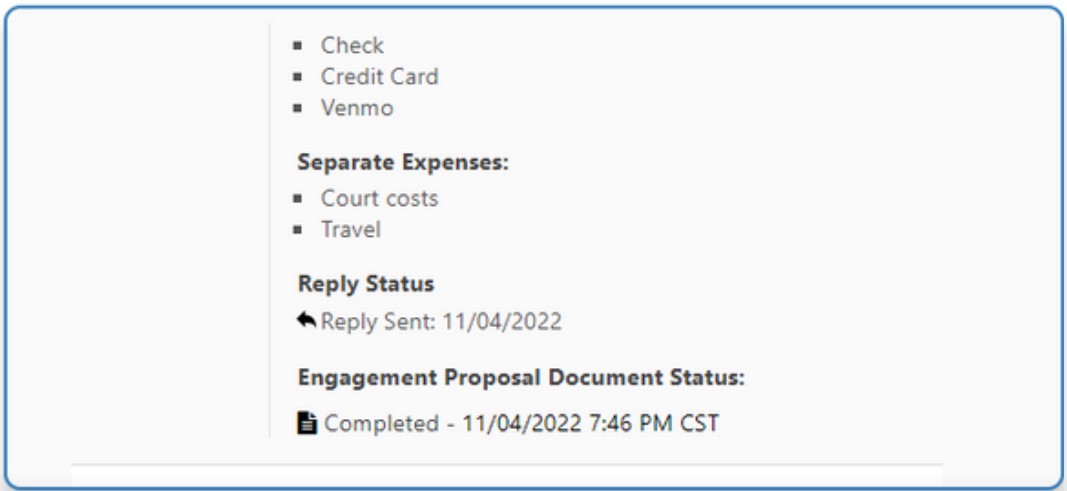
- In the case details from the attorney dashboard, the EP Document status is updated from Viewed to Completed.
- The client has then the option to download or email the signed document in Zoho.